Screen captures
Screen Captures That Add Visual Context to Work Activity.
When enabled and configured, Screen Captures add visual context to time records—helping employees and managers understand the applications, projects, tasks, and work behind each moment.
Ralvie product experience
A clear workspace built around the way work actually happens.
Recreated from the supplied Ralvie AI Productivity screens with fresh North American sample data.
Sundial active Capture enabled Search...⋮
ACTIVITIES / SCREEN CAPTURES
Capture gallery
Visual work context for September 2, 2026
9:00 AM – 11:00 AM8 captures
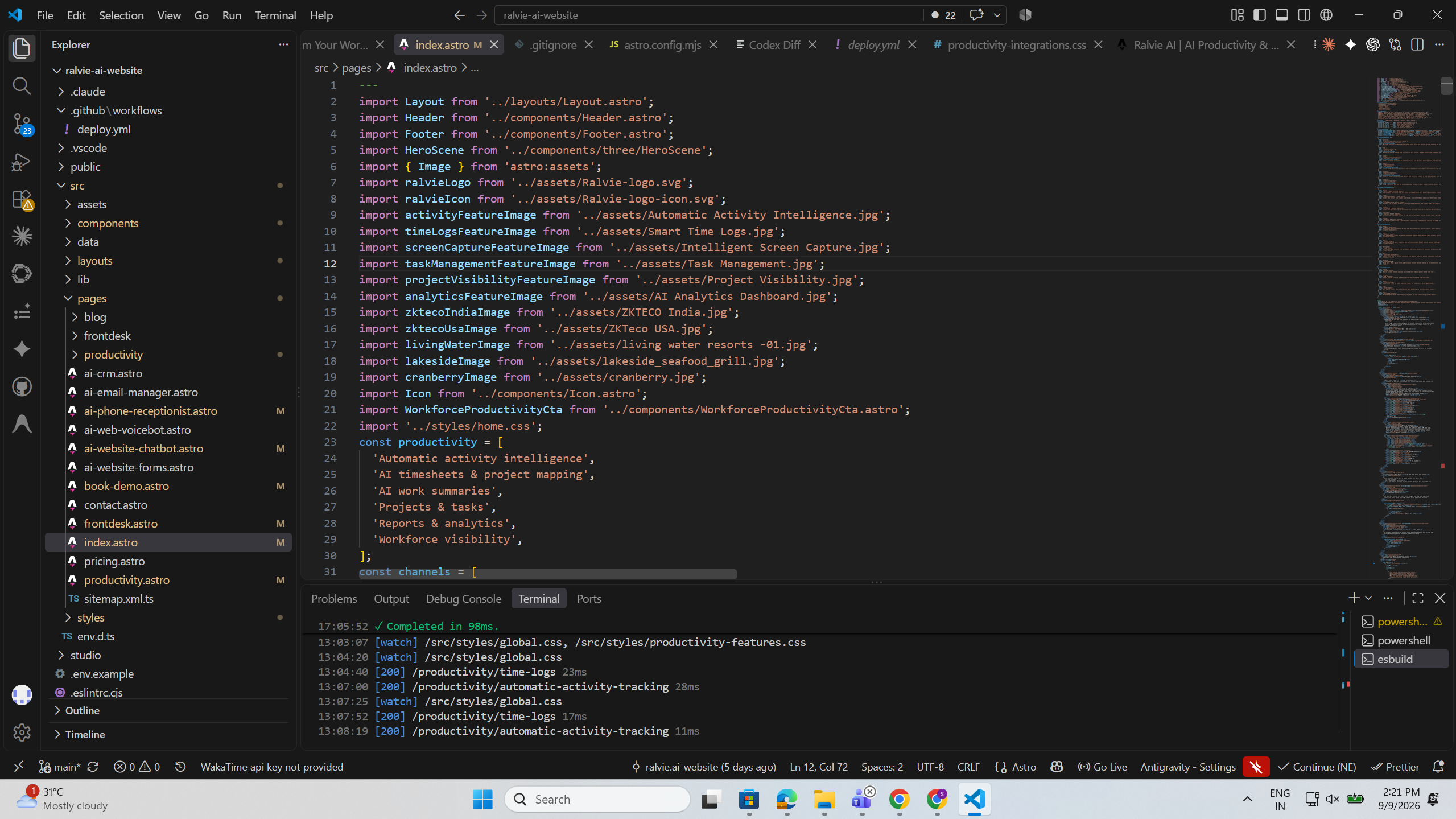
9:12 AMFigma
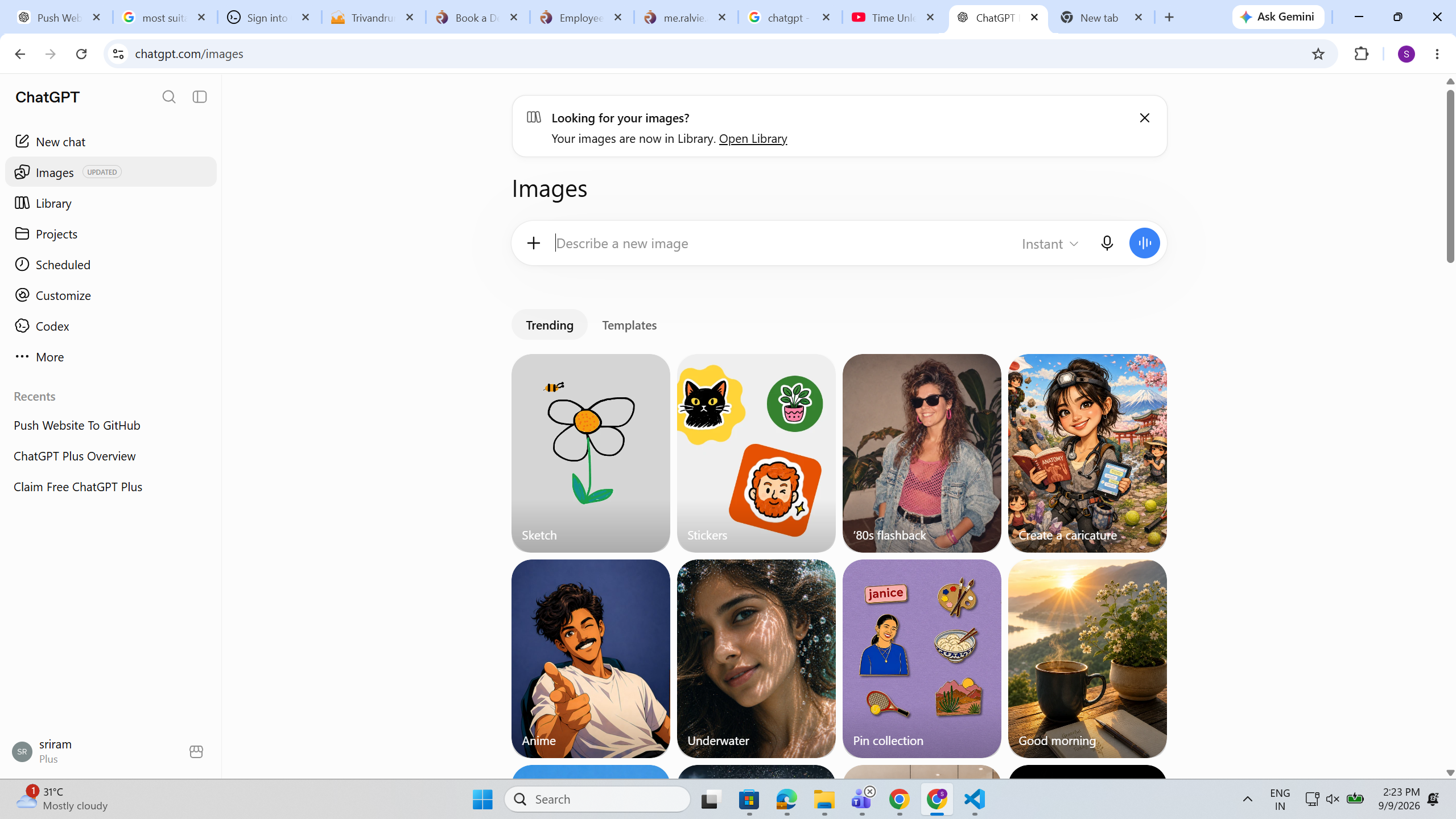
9:36 AMVS Code
10:04 AMNotion
10:28 AMChrome
10:52 AMTeams
11:06 AMExcel
11:24 AMSlack
11:48 AMJira
Explore the flow
Bring visual context into clear focus.
Move through a focused capture gallery and use visual work context only where it is helpful and appropriately configured.
Live workspaceExplore a connected view
Sundial active Capture enabled Search...⋮
ACTIVITIES / SCREEN CAPTURES
Capture gallery
Visual work context for September 2, 2026
9:00 AM – 11:00 AM8 captures
9:12 AMFigma
9:36 AMVS Code
10:04 AMNotion
10:28 AMChrome
10:52 AMTeams
11:06 AMExcel
11:24 AMSlack
11:48 AMJira
Context connected
↗Ready to review
Interaction guide
01Browse by moment+
Scan captured context by day, employee, and application.
02Keep context connected+
Link visual details with the work, projects, and time around them.
03Stay in control+
Work within transparent schedules, permissions, and configuration.
Built for clarity Move from a signal to the context behind it without losing your place.
Other core featuresExplore the rest of the connected
Explore the rest of the connected
productivity platform.
Each capability adds a useful layer of context, from captured activity and visual work records to time, tasks, projects, and productivity signals. Together, they help teams move from everyday work to clearer review, planning, and delivery decisions.
Automatic tracking
Capture approved workplace activity and turn it into useful work context.
Explore moreTime logs
Review tracked and logged work together in one clear day.
Explore moreTasks
Connect work effort with clear ownership, priority, and task progress.
Explore moreProjects
Understand effort, delivery health, and work distribution across initiatives.
Explore moreDashboards
Turn connected work signals into useful trends and decisions.
Explore moreRalvie AI Productivity
Explore the complete productivity platform for connected work visibility, time intelligence, project delivery, and actionable insights.
Explore moreA clearer way to work
Move from fragmented records to connected work intelligence.
Keep the tools and workflows your team already knows while adding richer workplace context.
How it works
From everyday activity to useful context.
Define a legitimate use case
Configure people and schedules
Capture supported work screens
Organize the gallery
Review with broader work context
Visual data requires stronger boundaries
Make Screen Capture transparent to employees.
Screens may contain confidential information. Deploy this feature selectively, transparently, and according to workplace, security, privacy, and legal requirements.
Communicate what is captured and why
Limit access to authorized roles
Never use one screenshot as a performance metric
Frequently asked questions
Screen captures, explained.
Clear answers for a more informed, connected workplace.
What are Ralvie Screen Captures?
Optional visual workplace context available when enabled and configured by the organization.
Can Screen Captures be disabled?
Yes. The feature should only be enabled where required.
Can captures follow work schedules?
Yes. Screen Capture workflows should follow appropriate schedules and workplace boundaries.
Can captures connect with Time Logs?
Yes. They can provide visual context alongside relevant work history.
Can captures contain sensitive information?
Yes. Organizations must evaluate privacy, security, confidentiality, and legal requirements.
Are screenshots designed to measure performance?
No. A screenshot is only supporting context and cannot determine productivity or performance.
Ralvie AI Productivity
Improve Workforce ProductivityWith Ralvie AI
Ralvie AI Productivity helps businesses improve workforce visibility, automate time tracking, simplify reporting, and gain actionable insights into how teams spend their time through AI-powered productivity management.
Smarter workforce visibility. Less manual reporting. Better productivity decisions.